
luna-send and luna-send-pub commands can be triggered using Telnet.
You can use webOS Dev Manager app to use the telnet.
local-key menu UI will pop up on bottom center on TV's screen. one-local-key menu located on bottom of the screen.
But the energy mode settings, multi audio, aspect ratio, sleep timer, picture mode, sound mode menu will be located on bottom left corner on TV's screen.
luna-send -n 1 luna://com.webos.service.applicationManager/launch '{"id":"com.webos.app.googleassistant","params":{"target":"file:///usr/palm/applications/com.palm.app.settings/index.en.html"}}'
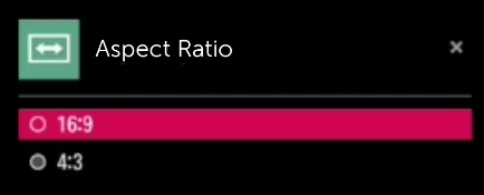
luna-send-pub -f -n 1 luna://com.webos.service.applicationManager/launch '{"id":"com.webos.app.tvhotkey","params":{"activateType":"aspect-ratio"}}'
Brings you to aspect ratio menu.
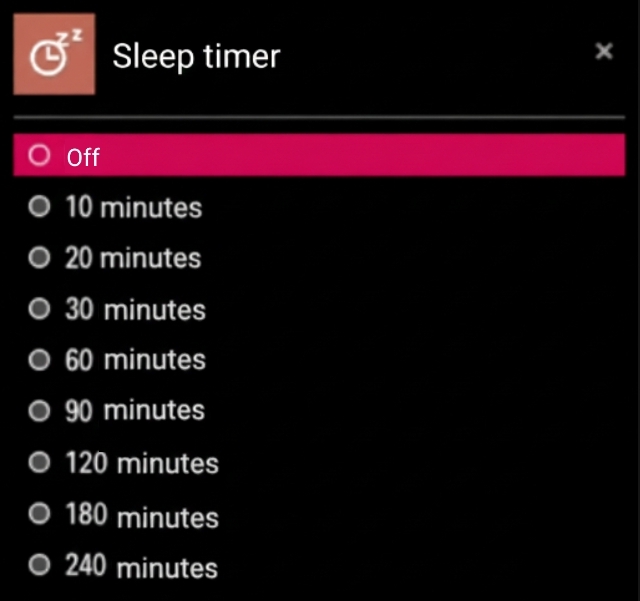
luna-send-pub -f -n 1 luna://com.webos.service.applicationManager/launch '{"id":"com.webos.app.tvhotkey","params":{"activateType":"sleep"}}'
Brings you to sleep menu
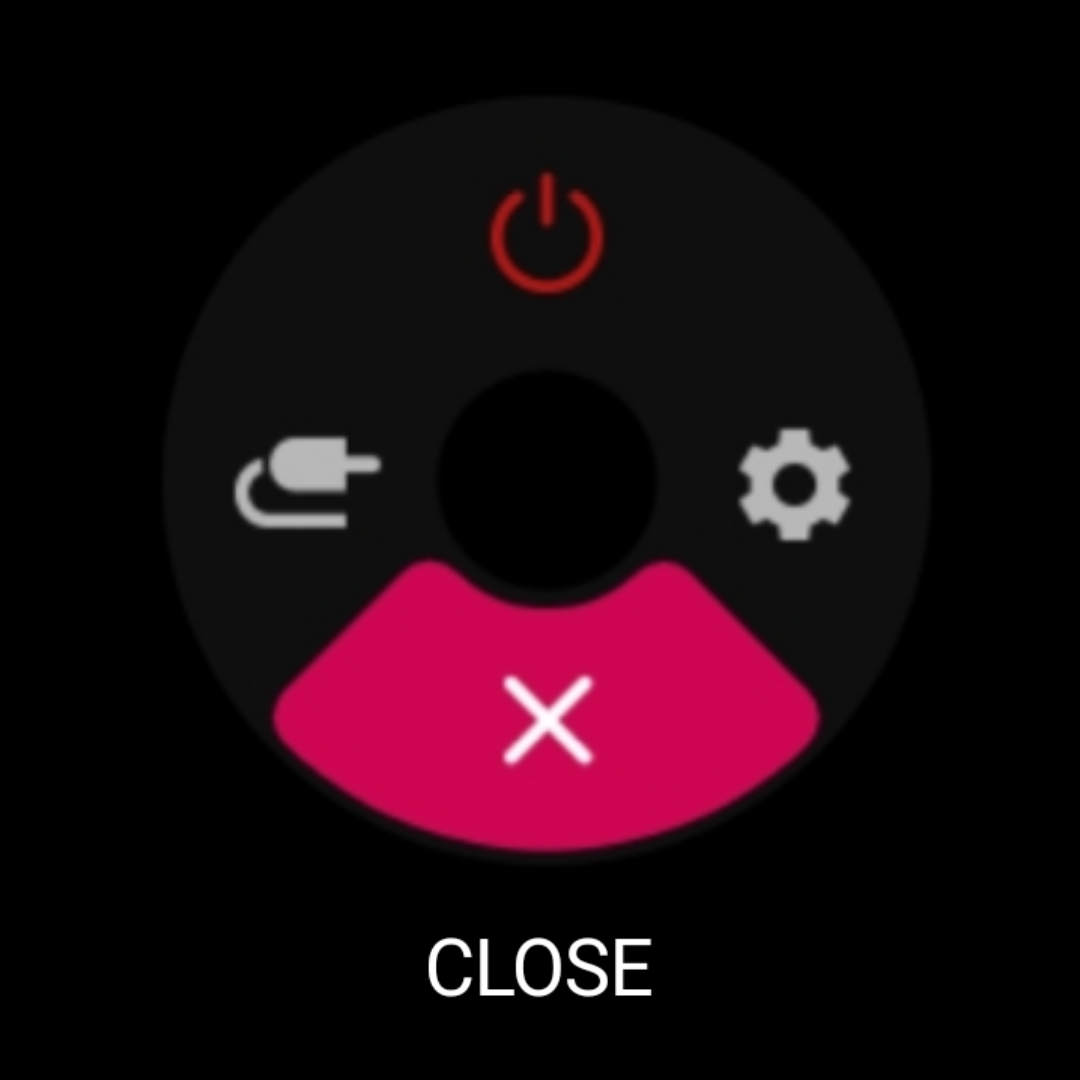
luna-send-pub -f -n 1 luna://com.webos.service.applicationManager/launch '{"id":"com.webos.app.tvhotkey","params":{"activateType":"one-local-key"}}'
Brings you to hidden power button menu.
Another method: By pressing a hidden power button under the TV's LG logo.

luna-send-pub -f -n 1 luna://com.webos.service.applicationManager/launch '{"id":"com.webos.app.tvhotkey","params":{"activateType":"soccer-mode"}}'
Turns on soccer mode (changes sound mode and picture mode to soccer). Activating the same command again will turns soccer mode off.

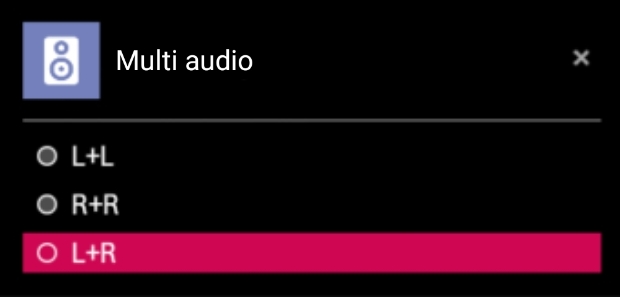
luna-send-pub -f -n 1 luna://com.webos.service.applicationManager/launch '{"id":"com.webos.app.tvhotkey","params":{"activateType":"multi-sound-setting"}}'
Brings you to the audio description menu.
Another method: By going to HDMI, or other input, after, pressing OK, 🟨, it will show up the menu.
luna-send-pub -f -n 1 luna://com.webos.service.applicationManager/launch '{"id":"com.webos.app.tvhotkey","params":{"activateType":"simplink"}}'
SIMPLINK will be enabled. Activating same command, disables SIMPLINK.

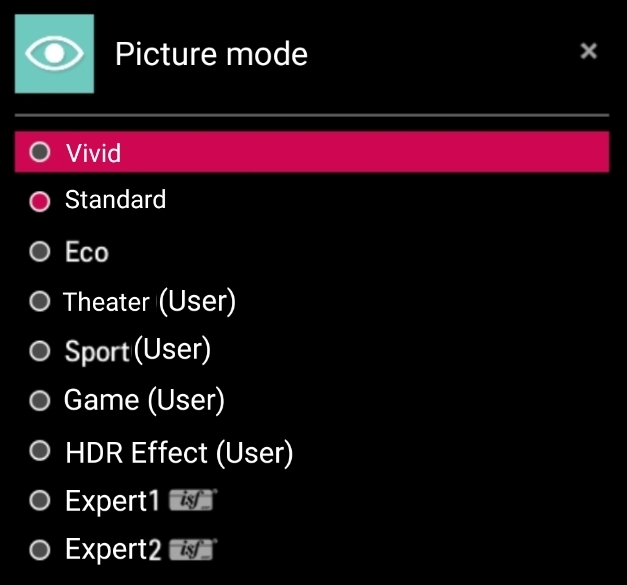
luna-send-pub -f -n 1 luna://com.webos.service.applicationManager/launch '{"id":"com.webos.app.tvhotkey","params":{"activateType":"factory-picture-mode"}}'
Brings you to picture menu.
luna-send-pub -f -n 1 luna://com.webos.service.applicationManager/launch '{"id":"com.webos.app.tvhotkey","params":{"activateType":"factory-sound-mode"}}
Brings you to the sound mode.
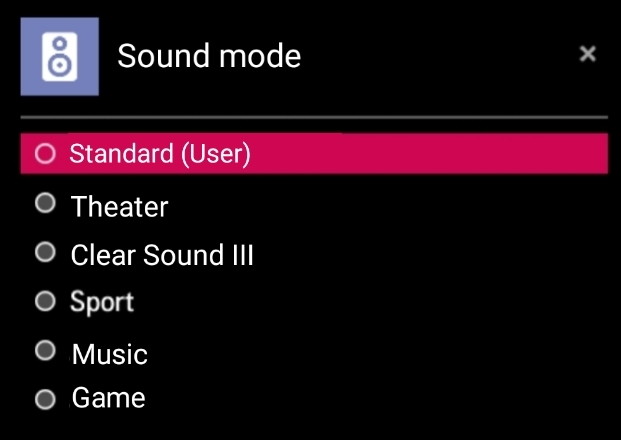
luna-send-pub -f -n 1 luna://com.webos.service.applicationManager/launch '{"id":"com.webos.app.tvhotkey","params":{"activateType":"3d-mode"}}'
3D mode will probably get enabled and disabled when activating same command?
TV will display a toast saying This TV is not 3D. if TV don't support 3D.

luna-send-pub -f -n 1 luna://com.webos.service.applicationManager/launch '{"id":"com.webos.app.tvhotkey","params":{"activateType":"audio-description"}}'
it will display a Toast saying Audio description is enabled.. Activating same command will display a toast saying Audio description is disabled..
Another method: By pressing AD button on your remote control.

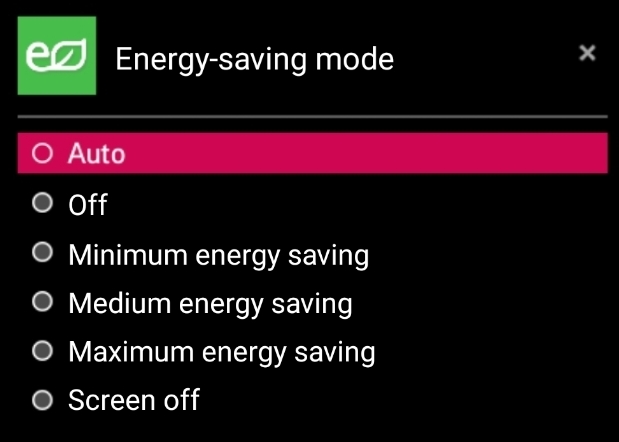
luna-send-pub -f -n 1 luna://com.webos.service.applicationManager/launch '{"id":"com.webos.app.tvhotkey","params":{"activateType":"energy-saving-mode"}}'
Brings you to the energy saving menu.
luna-send-pub -f -n 1 luna://com.webos.service.applicationManager/launch '{"id":"com.webos.app.tvhotkey","params":{"activateType":"store-mode"}}'
It changes from Home mode to Store mode. It changes picture mode to Vivid, and it changes Just Scan to Automatic.

luna-send-pub -f -n 1 luna://com.webos.service.applicationManager/launch '{"id":"com.webos.app.tvhotkey","params":{"activateType":"one-local-key"}}'
Brings you to the unused/hidden local key menu.
luna-send-pub -f -n 1 luna://com.webos.service.applicationManager/launch '{"id":"com.webos.app.tvhotkey","params":{"activateType":"subtitle"}}'
Probably brings you to the subtitle menu. It will mostly say No available options.
Another method: By pressing SUBTITLE or CAPTION button on your remote control.

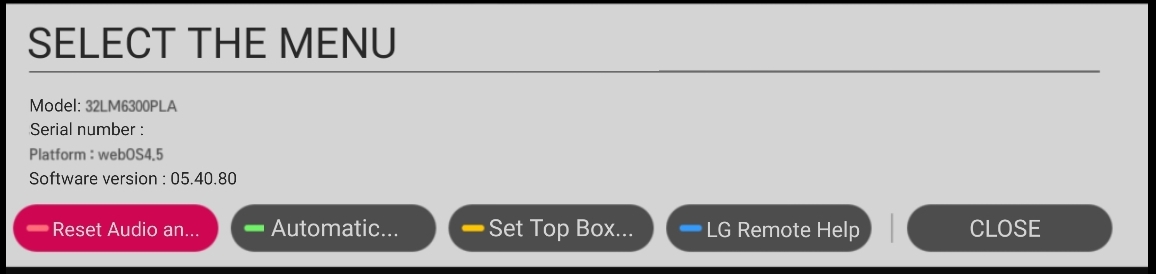
luna-send-pub -f -n 1 luna://com.webos.service.applicationManager/launch '{"id":"com.webos.app.tvhotkey","params":{"activateType":"mute-hidden-action"}}'
Triggers the SELECT THE MENU UI. It changes volume level to 10, unmutes the TV, it plays voice-confirm sound, and the menu pops up.
Another method: By going to HDMI or other input, pressing MUTE button 3 times. On other applications, this will don't work, only on HDMI and other inputs.
luna-send-pub -f -n 1 luna://com.webos.service.applicationManager/launch '{"id":"com.webos.app.tvhotkey","params":{"activateType":"object-audio-setting"}}'
The menu don't pop up.
luna-send-pub -f -n 1 luna://com.webos.service.applicationManager/launch '{"id":"com.webos.app.tvhotkey","params":{"activateType":"object-audio-setting-force"}}' Same thing, nothing happens.
luna-send-pub -f -n 1 luna://com.webos.service.applicationManager/launch '{"id":"com.webos.app.tvhotkey","params":{"activateType":"multi-sound-setting-force"}}' Brings you to the Multi Audio menu, same thing.
luna-send-pub -f -n 1 luna://com.webos.service.applicationManager/launch '{"id":"com.webos.app.tvhotkey","params":{"activateType":"subtitle-force"}}' Same stuff, it brings to Subtitle menu, or it displays a toast saying No available options.
luna-send -n 1 luna://com.webos.service.applicationManager/launch '{"id":"com.webos.app.googleassistant","params":{"target":"file:///usr/palm/applications/com.webos.app.miracast/index.multi.html"}}'
Entering the command, will not trigger splash screen.
luna-send -n 1 luna://com.webos.service.applicationManager/launch '{"id":"com.webos.app.googleassistant","params":{"target":"file:///usr/palm/applications/com.webos.app.cmp-client/index.html"}}'
luna-send -n 1 luna://com.webos.service.applicationManager/launch '{"id":"com.webos.app.googleassistant","params":{"target":"file://usr/share/localization/wam/loaderror.html"}}'
Triggering this command
luna-send -n 1 luna://com.webos.service.applicationManager/launch '{"id":"com.webos.app.googleassistant","params":{"target":"file:///usr/palm/applications/com.palm.app.firstuse/index.multi.html"}}'
will open the First Use HTML page.
Tried it, stopped using it at "WHERE ARE YOU FROM?" scene, so the TV won't go affected, but TV's still rooted :)
You can escape out of First Use when you press the gear button or HOME button or ••• button or input button.
luna-send -n 1 'luna://com.webos.audio/systemsounds/playFeedback' '{"play":true,"sink":"pfeedback","name":"voiceconfirm"}'
There is other names, so here is the names:
loading power-on power-off shutter voicestart voiceconfirm voicecancel welcome.
There's more, just truncated.
When entering this command on Telnet: luna-send -n 1 -f luna://com.webos.service.applicationManager/launch '{"id":"com.webos.app.igallery", "params": {"key": "value"}}', it will say App not found, but the Art Gallery app is in /usr/palm/applications, and it exists there. To launch Art Gallery, enter this command:
luna-send -n 1 luna://com.webos.service.applicationManager/launch '{"id":"com.webos.app.googleassistant","params":{"target":"file:///usr/palm/applications/com.webos.app.igallery/index.multi.html"}}' It will take around 10 seconds, and it will open Art Gallery. To escape out of the app, press home or settings or input or ••• button.
Triggering this command
luna-send -n 1 luna://com.webos.service.applicationManager/launch '{"id":"com.webos.app.googleassistant","params":{"target":"file:///usr/palm/applications/com.webos.app.tvguide/index.html"}}', it takes 10 seconds to load up, and it launches the old TV Guide app. To escape out of the app, press ••• or input, or settings, or home button.
Entering this command
luna-send -n 1 luna://com.webos.service.applicationManager/launch '{"id":"com.webos.app.googleassistant","params":{"target":"file:///usr/palm/applications/com.webos.app.premium/index.html"}}', will kinda displays the splash screen, and it launches the ancient LG Content Store. Sadly, you can't download or view apps on it. To escape out of the app, press ••• or input, or settings, or home button.