"Just use USB, you idiot"
- Paraphrased from a blog post by RatRig, who now have a controller board by BTT called the SKRat which has CAN bus on it
I have nothing hate toward RatRig or the USB industrial complex; I just think I'm funny.
- What? Why would you put yourself through this?
- The Guide
Quit hassling me, man. I'm just enjoying my Mercury One.1 and trying to have a good time bruh.
But really because I like tinkering and this CAN bus thing is neat and I like pain inflicted on me slowly through never-ending projects
- All of your necessary USB cables, crimped CAN cables, etc
- BTT SKR Mini e3 v3.0 (stm32g0b1)
- U2C v2.1 with fixed firmware
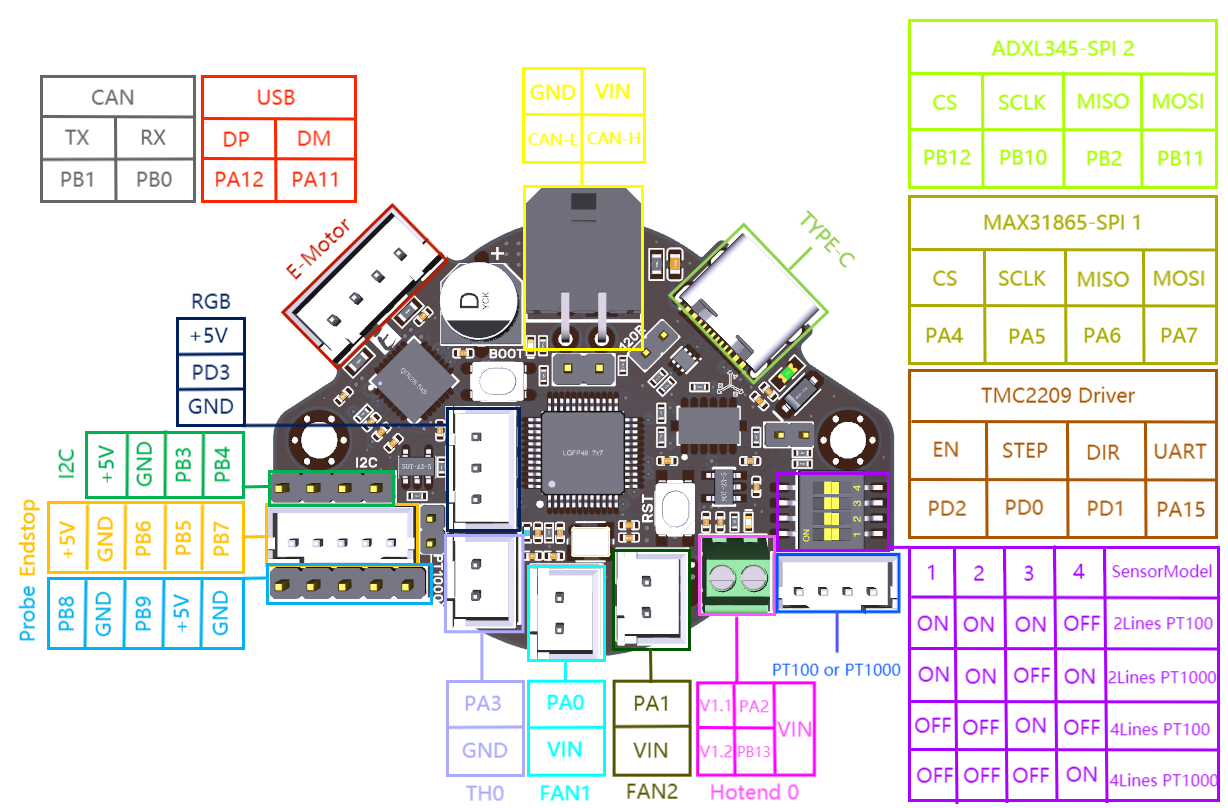
- EBB36
PITBSoon ™️
- Linux (this is likely your Raspberry pi) - I'm using Arch Linux ARM (btw I use Arch)
- A working (enough) klipper installation
- I'll be assuming the default klipper folder layout, etc for this because it's way easier than pretending your custom install is better than my custom install
- Ideally an existing CAN network but I'll include a basic set of configs for my systemd-networkd setup
dfu-util>= 0.11
- This guide uses
1M/1000000bitrate - It's
systemd-networkd
I'll keep this short. Here's my configs. It's for systemd-networkd. I'm pretty sure most 3D printing distro flavours use /etc/network/interfaces.d/ for their network configs so this probably isn't that helpful for most. Follow another guide for that info.
How do you know which you have? Does ls /etc/network/interfaces.d return files or an error because the folder doesn't exist? If the latter, you're probably systemd-networkd. Alternatively, check the status of your systemd-networkd service.
$ sudo systemctl status systemd-networkd
● systemd-networkd.service - Network Configuration
     Loaded: loaded (/usr/lib/systemd/system/systemd-networkd.service; enabled; preset: enabled)
     Active: active (running) since Mon 2023-05-08 20:29:44 CDT; 1 month 2 days ago
TriggeredBy: ● systemd-networkd.socket
       Docs: man:systemd-networkd.service(8)
   Main PID: 218 (systemd-network)
     Status: "Processing requests..."
      Tasks: 1 (limit: 1587)
        CPU: 5.358s
     CGroup: /system.slice/systemd-networkd.service
             └─218 /usr/lib/systemd/systemd-networkd
Here's my config files.
#/etc/systemd/network/30-can.network
[Match]
Name=can0

[CAN]
BitRate=1000000
#/etc/systemd/network/30-can.link
[Match]
Name=can0

[Link]
RequiredForOnline=no
TransmitQueueLength=512
Find more info about your options in those files here.
allow-hotplug can0
iface can0 can static
 bitrate 1000000
 up ifconfig $IFACE txqueuelen 512
 pre-up ip link set can0 type can bitrate 1000000
 pre-up ip link set can0 txqueuelen 512
Great, I'm sure that's working like a champ because my guide is perfect and without flaws, but if the simulation is not in your favour that day and it's not working, check out maz0r's CAN bus guide or hit me up on Discord, I'm breadz (no more numbers! fancy!)
You probably need to do this unless you've already got the fixed firmware flashed (if you're unsure, you don't).
The gist of it is that BTT shipped some earlier boards with bad firmware that didn't play nice with CanBoot. This fixes that. More info at Arksine/CanBoot#44.
Unplug everything from your U2C. Yes, e v e r y t h i n g. and get your USB-A to USB-C cable ready.
Plug the USB-A end into your Linux device and then hold down the BOOT button as you insert the USB-C end into the U2C.
Run lsusb in your terminal and you should see a device listed as "in DFU Mode". dfu-util -l (again, may need root) should also return some lines starting with Found DFU: [0483:df11].
Note: Your cable has to be data + power. No "Charging Only" cables. Also, use a good one.
The built firmware is sourced from this comment by BTT in the issue listed above.
Download & extract the firmware
cd ~ && wget https://github.com/Arksine/CanBoot/files/10410265/G0B1_U2C_V2.zip && unzip G0B1_U2C_V2.zip
Note: You may need to use sudo for this command.
dfu-util -D ~/G0B1_U2C_V2.bin -a 0 -s 0x08000000:leave
The last line of the output may be an error but so long as it says "File Downloaded Sucessfully" before that, everything is ok.
- cmake
- gcc-arm-none-eabi
- git
cd ~ && \
git clone https://github.com/bigtreetech/candleLight_fw && \
cd candleLight_fw && \
git checkout stm32g0_support && \
mkdir build && \
cd build && \
cmake .. -DCMAKE_TOOLCHAIN_FILE=../cmake/gcc-arm-none-eabi-8-2019-q3-update.cmake && \
make budgetcan_fw -j
Make sure you're in DFU mode first and then run the following from the build directory:
make flash-budgetcan_fw
Disconnect the USB and reattach it. You should now see an OpenMoko, Inc. Geschwister Schneider CAN adapter device listed when you run lsusb.
TODO, if any
cd ~/CanBoot/ && \
make menuconfig KCONFIG_CONFIG=SKR_MINI_E3_V3.profile
                                                                                                           CanBoot Configuration v0.0.1-43-g10cc588

	Micro-controller Architecture (STMicroelectronics STM32)  --->
    Processor model (STM32G0B1)  --->
    Build CanBoot deployment application (8KiB bootloader)  --->
    Clock Reference (8 MHz crystal)  --->
    Communication interface (USB (on PA11/PA12))  --->
    Application start offset (8KiB offset)  --->
    USB ids  --->
()  GPIO pins to set on bootloader entry
[*] Support bootloader entry on rapid double click of reset button
[ ] Enable bootloader entry on button (or gpio) state
[*] Enable Status LED
(PD8)   Status LED GPIO Pin
Press Q and then S to close & save.
make clean && make KCONFIG_CONFIG=SKR_MINI_E3_V3.profile -j
Copy out/deployer.bin to your printer's microSD card and insert it into the machine, then cycle the power.
As part of the CAN bus, this connection will come before any of the Molex or JST CAN outputs so you should NOT jump the 120R header unless this is your only CAN device on the network. This line is a bit of a guess if I'm honest. I am not that great at reading electronic schematics (yet)
Using a USB-A to Micro-USB cable, plug one end into the SKR Mini and one end into one of the USB-A ports on the U2C.
Next, jump the two closest pins to the rear of the USB-A housing on one of the two 4-pin headers. Use the table and U2C pinout below to figure out which set of 4 pins you have to jump. I believe the other two pins on each set are for jumping the 120R termination resistor.
| USB-A Port | VUSB Name / Header to jump |
|---|---|
| Top | VUSB2 |
| Bottom | VUSB1 |

Note: I believe you'll still need to jump the regular 120R header for the MCU and also whichever is the last device in your CAN network.
TODO, if any
cd ~/klipper/ && \
make menuconfig KCONFIG_CONFIG=SKR_MINI_E3_V3.profile
                                                                                                                Klipper Firmware Configuration

[*] Enable extra low-level configuration options
    Micro-controller Architecture (STMicroelectronics STM32)  --->
    Processor model (STM32G0B1)  --->
    Bootloader offset (8KiB bootloader)  --->
    Clock Reference (8 MHz crystal)  --->
    Communication interface (CAN bus (on PA11/PA12))  --->
(1000000) CAN bus speed
()  GPIO pins to set at micro-controller startup
python3 ~/CanBoot/scripts/flash_can.py -i can0 -q
Example result:
Resetting all bootloader node IDs...
Checking for canboot nodes...
Detected UUID: [YOUR-UUID], Application: Klipper
Query Complete
cd ~/klipper/ && \
python ~/CanBoot/scripts/flash_can.py -i can0 -f ~/klipper/out/klipper.bin -u your-uuid-here
Example config section:
[mcu]
canbus_uuid: your-uuid-here
# Optional
# canbus_interface: can0
but this is basically the same as all other guides/the section for Klipper + CanBoot except you use dfu-util and not a microSD for the flashing of CanBoot.
Here's the pinout anyway.