
WSA or Windows Subsystem for Android is a Tool that allows Windows to run Android Apps directly without using any emulator. The problem is Windows Subsystem for Android is currently only available through preview via the Beta Channel of the Windows Insider Program. But if you follow my guide, you don't have to be in Windows Insider Program to try it out. The only thing you need is Windows 11 installed and some patience.
- Windows Subsystem for Android or WSA must be Installed.
Click here to view the guide that shows how to install Windows Subsystem for Android in any Edition of Windows 11 (including Windows 11 Home) non Inider or stable release.
- First install Windows Subsystem for Android. Click here to know how to do that.
- Search and run
Windows Subsystem for Android Settingfrom Windows start menu. - The window shown in the screenshot below will appear. There, click on the icon in the extreme left side of the Files box. This will start Windows Subsystem for Android and open the
File ManagerApp in Android. This can take some time so be patient.
- Keep
File Managerrunning otherwise Windows Subsystem for Android will terminate itself. - Enable
Optional Diagnostic DataandDeveloper modeinWindows Subsystem for Android SettingWindow and click theRefreshbutton in theIP addressSection. - Click here to download the latest version of adb and extract the downloaded zip file.
- Inside the extracted folder, there should be a file named
adb.exealong with a plenty of other files. - Put the apk files of the Android apps that you want to install in this folder, and rename them to names that are easier to remember.
- Copy the path of this folder from the pathbox in Windows File Explorer as shown in the screenshot below:
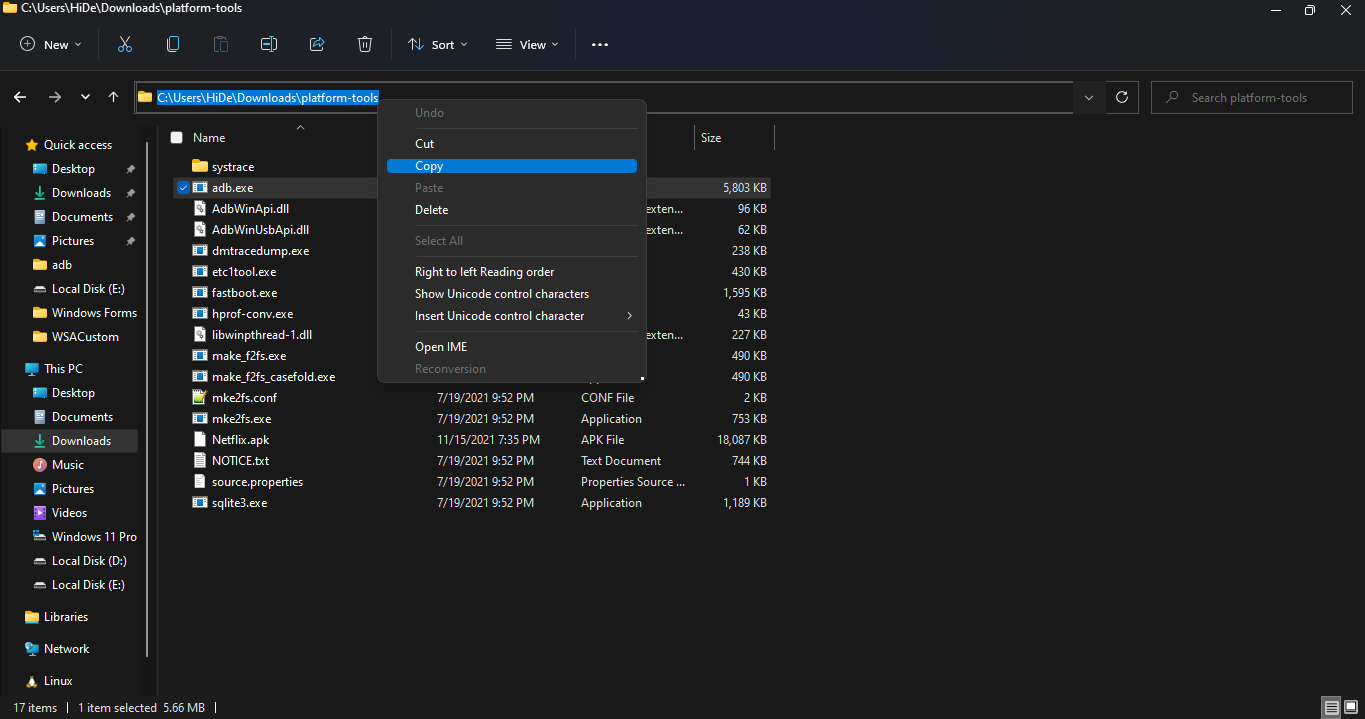
- Search for
Command Promptin Windows Start Menu and Open it. - Type
cd ""in the command prompt. Inside those"", paste the copied path by pressingCtrl + V. The windows should look something like the below screenshot. Then pressEnter.
- Now, type
adb connect 127.0.0.1:58526in the Command Prompt Window. PressEnterand wait for the connection. - Once connected, type
adb install "name.apk"in the Command Prompt. Replacenamewith the name of the apk file that you want to install and pressEnter. After successful install, the installed App will appear in Windows Start Menu. Repeat this step for all the apk files that you want to install and they will appear in Windows Start Menu as well.


Great explanation of the setup process. Many users forget to keep Developer Mode enabled, which often causes connection problems. I also found a practical walkthrough at https://insidefame.co.uk/ that explains APK installation mistakes and fixes in simple steps. Definitely useful for beginners.