
- Update system-
sudo apt update -y        # Fetches the list of available updates
sudo apt upgrade -y       # Installs some updates; does not remove packages
sudo apt full-upgrade -y  # Installs updates; may also remove some packages, if needed
sudo apt autoremove -y    # Removes any old packages that are no longer needed

#sudo do-release-upgrade -y  # If need to upgrade to latest 20.04 version  -> Do not do it
- Create a new user for management-
sudo adduser <UserNameHere> #Adding a User with password
  # sudo adduser abrar
sudo groups <SudoUserGroupHere> #Granting a User Sudo Privileges
  # sudo groups abrar
sudo usermod -aG <SudoUserGroupHere> <UserNameHere>
  # sudo usermod -aG abrar abrar
sudo adduser <UserNameHere> sudo  # Added the user into sudo group
  # sudo adduser abrar sudo
then logout and login with the new username-
exit
ssh abrar@<ip>
- Install required packages-
sudo apt-get install nano net-tools git wget -y
- Add ASP.Net core packages into libraries-
sudo wget https://packages.microsoft.com/config/ubuntu/20.04/packages-microsoft-prod.deb -O packages-microsoft-prod.deb
sudo dpkg -i packages-microsoft-prod.deb
sudo rm -rf packages-microsoft-prod.deb
sudo add-apt-repository universe -y
sudo apt-get update -y
sudo apt-get install apt-transport-https
sudo apt-get update -y
- Install Dotnet Core 3.1-
sudo apt-get install dotnet-sdk-3.1 aspnetcore-runtime-3.1 dotnet-runtime-3.1 supervisor -y
dotnet tool install --global dotnet-ef --version 3.*
- Try a 'Hello World' Web App-
cd ~
dotnet new web --name MyWebApp
cd ~/MyWebApp
sudo dotnet run --urls "http://*:80;https://*:443"
Then try with browser with the server IP-
http://<server_ip>:80
If it runs, then you are good with the ASP.Net Core installation.
- Build the executables/ Publish-
cd MyWebApp/
dotnet publish -c Release -o ~/PublishedWebApp
cd ~
Running the code from the deployment-
cd ~/PublishedWebApp/
sudo dotnet MyWebApp.dll --urls "http://*:80;https://*:443"
-
Check version-
supervisord -v -
Commands-
systemctl status supervisor       # Check status
sudo supervisorctl reread         # Read all configs including newly added ones
sudo systemctl restart supervisor # Restart Supervisor
sudo systemctl stop supervisor   # stop supervisor server
sudo systemctl start supervisor   # start Supervisor
- Enable Supervisor Web Interface (if needed)-
nano /etc/supervisor/supervisord.conf
Then add the following lines-
[inet_http_server]
port=*:9001
username=admin
password=admin
Then service restart with this command- sudo systemctl restart supervisor
- Add supervisor config-
sudo systemctl stop supervisord
cd /etc/supervisor/conf.d/
sudo vim <app_name>.conf
  # sudo vim xml-sign-asp.conf
Then add the config to run the application-
[program:xml-sign-asp]
command=dotnet "MyWebApp.dll" --urls "http://*:80;https://*:443"
directory=/home/abrar/PublishedWebApp/
environment=ASPNETCORE__ENVIRONMENT=Development
user=root
stopsignal=INT
autostart=true
autorestart=true
startsecs=1
stderr_logfile=/var/log/xml_sign_asp.err.log
stdout_logfile=/var/log/xml_sign_asp.out.log
environment=ASPNETCORE__ENVIRONMENT=Development can be Production or DOTNET_CLI_HOME=/temp as well depending on demand.
Then reread supervisor and restart-
sudo supervisorctl reread
sudo systemctl start supervisor
# or sudo systemctl restart supervisor
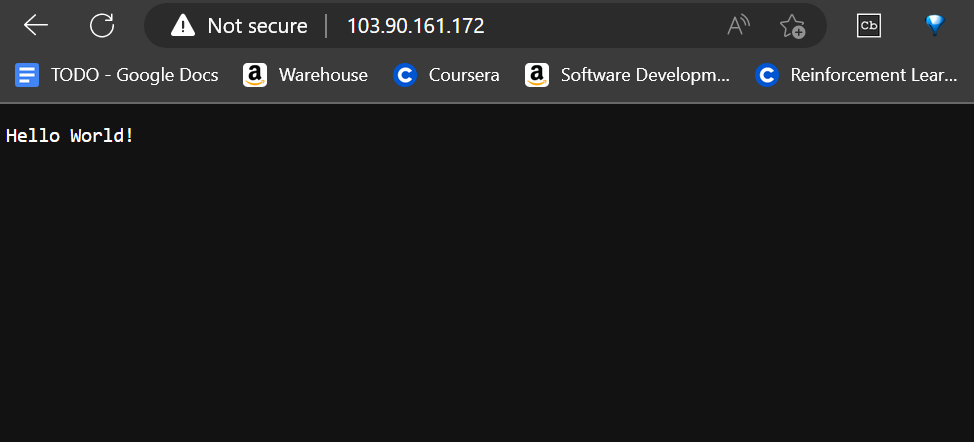
And then try if everything works by going to the browser.
- Update Code or download new code-
cd ~/code
git pull
cd ~
- Stop Service
sudo systemctl stop supervisor
systemctl status supervisor
- Save the database (if needed). Move the database to up.
cp ~/PublishedWebApp/Data/App.db ~/App.db
- Delete Previous Build-
sudo rm -rf ~/PublishedWebApp
- Generate New Production-
cd ~/code
dotnet publish -c Release -o ~/PublishedWebApp
cd ~
# Copy the database as well
mkdir ~/PublishedWebApp/Data
mv ~/App.db ~/PublishedWebApp/Data/App.db

chmod -R o+rw ~/PublishedWebApp
- Run The Server and test in browser-
sudo systemctl start supervisor
sudo systemctl status supervisor
Say URL for the browser is this.
If any error occured, then read the log file like this-
tail -f /var/log/xml_sign_asp.err.log
tail -f /var/log/xml_sign_asp.out.log
- If Need to run migration in Linux server, then-
dotnet tool install --global dotnet-ef --version 3.*
dotnet-ef database update
And then move the database file where it need to move.
If any permission issue-
chmod -R o+rw ~/PublishedWebApp
chmod -R 777 ~/PublishedWebApp
cd ~/code && git pull && cd ~ && sudo systemctl stop supervisor && cd ~/code && dotnet publish -c Release -o ~/PublishedWebApp && cd ~ && sudo chmod -R o+rw ~/PublishedWebApp && sudo systemctl start supervisor && tail -f /var/log/xml_sign_asp.out.log